Documentation / Tutorials / Find out if a change made your page slower
Find out if a change made your page slower
In this tutorial you save a baseline test of a page, test the page again without a change and then with a change that makes it slower. The compare plugin tells you which metrics got slower and how sure it is. At the end you do the same for a change on your own page.
You need:
- Docker installed and running.
- A terminal.
- About 20 minutes. Most of it is waiting for the tests.
If you have not used sitespeed.io before, do Test your first page and read the report first.
Why one test is not enough
The same page does not load equally fast every time. The network, the server and your computer all vary. If you test a page once before and once after a change, you do not know if the difference comes from your change or from chance.
The compare plugin solves this with many runs and statistics. You save one test as the baseline. When you test again, the plugin compares all runs of the new test with all runs of the baseline, with the Mann-Whitney U test. It tells you which metrics got slower and how likely it is that the change is real.
Step 1: Save a baseline
Open a terminal, go to an empty folder and run:
docker run --rm -v "$(pwd):/sitespeed.io" sitespeedio/sitespeed.io:43.0.0 https://www.sitespeed.io/ -n 21 --compare.id start_page --compare.saveBaselineOn Windows in PowerShell, use ${pwd} without quotes instead of "$(pwd)".
-n 21loads the page 21 times. The statistics need many runs, and the plugin warns you if you use less than 20.--compare.id start_pagegives the test a name. A later test with the same id is compared with this baseline.--compare.saveBaselinesaves this test as the baseline.
The test takes about 5 minutes. When it is done, the folder has a file named start_page-1.json. That is the baseline: the metrics of all 21 runs. The 1 is the page number, so you can compare several pages in one test.
Step 2: Test again without a change
Run the same test again, but without --compare.saveBaseline:
docker run --rm -v "$(pwd):/sitespeed.io" sitespeedio/sitespeed.io:43.0.0 https://www.sitespeed.io/ -n 21 --compare.id start_pageThe log says Got a baseline:start_page-1. Open the report (the last line of the log tells you where it is), click Open the page report and then the Compare tab.
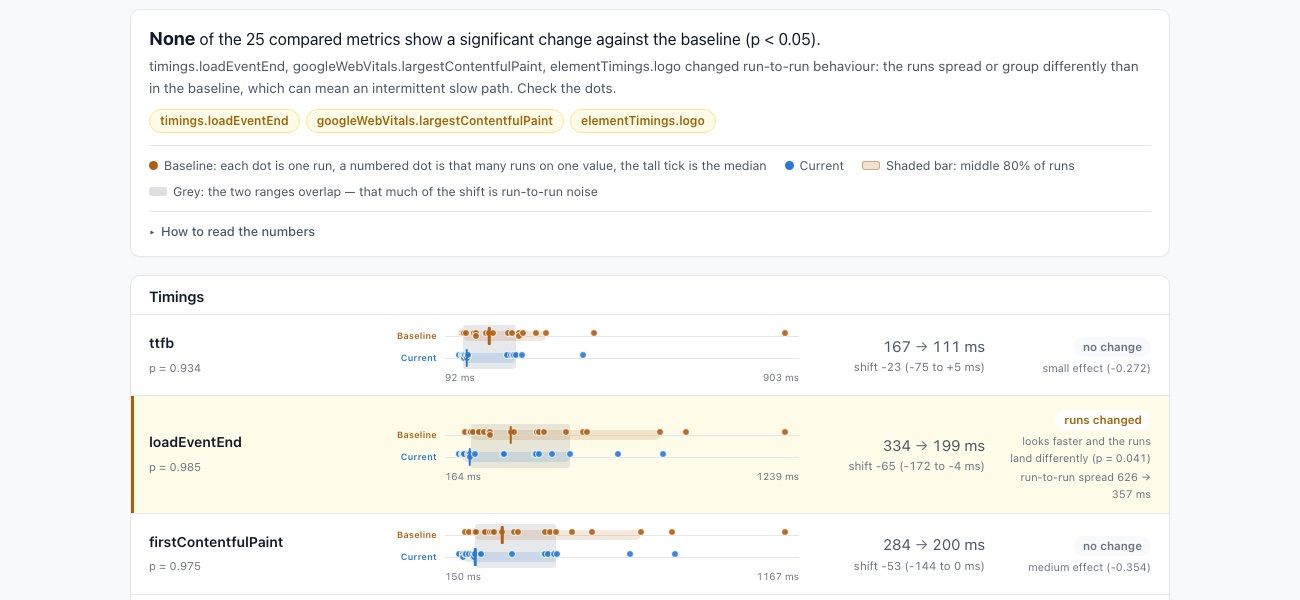
Nothing changed on the page, and the plugin agrees: None of the 25 compared metrics show a significant change. But look at the numbers. When we made this tutorial, the median First Contentful Paint was 284 ms in the baseline and 200 ms in the new test. The same page, tested twice, was 84 ms apart. That is why you cannot compare two numbers.
Each row is one metric:
- The dots are the runs, orange for the baseline and blue for the new test. The tall tick is the median, and the shaded bar is the middle 80% of the runs.
- p is the chance to get a difference like this if nothing changed. Below 0.05 the plugin treats the change as real. Here it is 0.975: no sign of a real change.
- shift is how big the change is, with a range it is 95% sure of. A range that includes 0, like -144 to 0 ms, means that the change can be zero.
Some rows are yellow with runs changed. The median did not get slower, but the runs spread differently than in the baseline. That is not a regression. It can be worth a look when it happens again, because it can mean that the page is sometimes slow.
Step 3: Test with a change that makes the page slower
Now make the page slower. --injectJs adds JavaScript to the page before it starts to load. This script keeps the browser busy for 300 ms, the same as a new script on the page that blocks the browser:
docker run --rm -v "$(pwd):/sitespeed.io" sitespeedio/sitespeed.io:43.0.0 https://www.sitespeed.io/ -n 21 --compare.id start_page --injectJs "const end = Date.now() + 300; while (Date.now() < end) {}"Open the Compare tab of the new report.
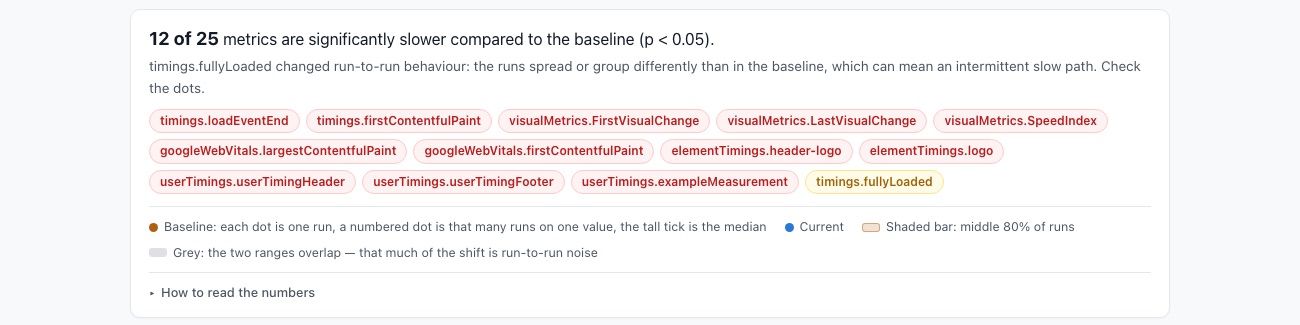
This time the plugin found the change: 12 of 25 metrics are significantly slower. The red chips are the metrics that got slower. Click a chip to go to its row.

When we made this tutorial, the median First Contentful Paint went from 284 ms to 461 ms, with a p-value of 0.003. The shift is +182 ms, and the plugin is 95% sure that it is between +33 and +221 ms. The range does not include 0, so the page really got slower. The blue dots are all to the right of most orange dots: you can see the change without the statistics.
Some things you will notice:
- The change is less than 300 ms. Part of the time that the script blocks overlaps with time the browser waits for the network anyway.
- Total Blocking Time is 0 ms in all runs, also with the script. Total Blocking Time only counts long tasks after the first paint, and this script runs before it. That is why it is good to look at several metrics.
- Some rows can say likely faster. The plugin only looks for metrics that got slower (a one-sided test), so a metric that got faster is not marked as significant. In our test the time to first byte was faster: the server answered faster this time, which has nothing to do with the change. To also find improvements, add
--compare.alternative two-sided.
Your numbers will not be the same as ours, but the pattern will: no change in step 2, and First Contentful Paint, Largest Contentful Paint and Speed Index slower in step 3.
Step 4: Use it for your own change
Now do the same for a real change on your own page:
-
Before you deploy the change, save a baseline of your page:
docker run --rm -v "$(pwd):/sitespeed.io" sitespeedio/sitespeed.io:43.0.0 https://www.example.org/ -n 21 --compare.id my_page --compare.saveBaseline -
Deploy the change.
-
Test again with the same id and the same number of runs, without
--compare.saveBaseline:docker run --rm -v "$(pwd):/sitespeed.io" sitespeedio/sitespeed.io:43.0.0 https://www.example.org/ -n 21 --compare.id my_page -
Open the Compare tab.
Replace https://www.example.org/ with your page. Test from the same computer and network both times, so that the only difference is your change. If you add --compare.saveBaseline to the second test, it is compared with the baseline and then becomes the new baseline. That way each test is compared with the test before.
Summary
You have:
- Saved a baseline test with 21 runs.
- Seen that the same page tested twice gives different numbers, and that the Compare tab does not call that a change.
- Made the page slower and seen the Compare tab find it, with how big the change is and how sure it is.
- Learned how to compare a change on your own page.
Learn more
- The compare plugin: all options, and how to alert on regressions in Grafana.
- Compare two saved tests without running a new test.
- Find regressions over time: the trend plugin, for tests that run every day.
- WebPageReplay: replay the same responses every time, so that the network does not change your numbers.
- Web performance testing in practice: how to get stable test results.