Documentation / Scripting / Tips and tricks
Tips and tricks
Here are some tips and tricks that can make your scripting better.
Include the script in the HTML result
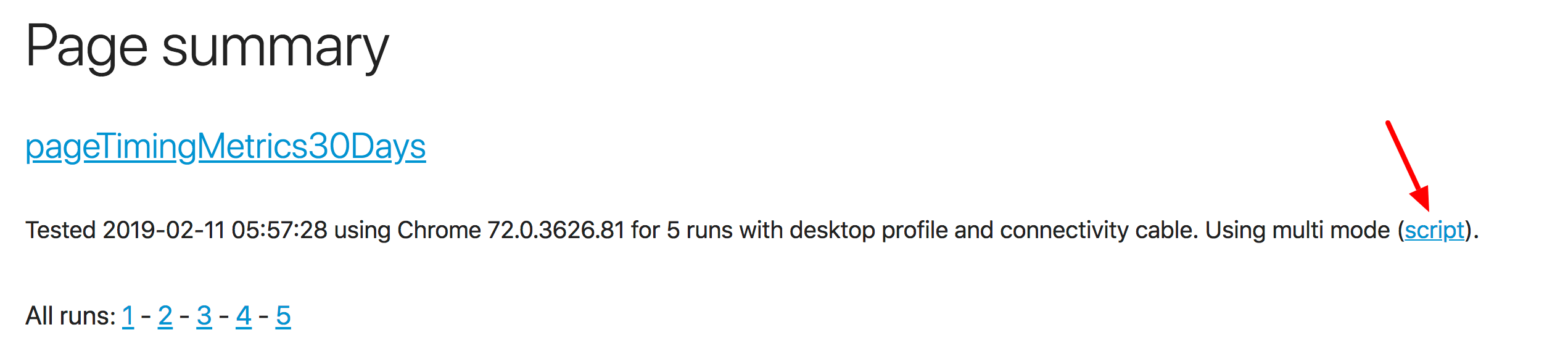
If you want to keep track of which script you are running, you can include the script in the HTML result with --html.showScript. You will then get a link to a page that shows the script.
Getting correct Visual Metrics
Visual metrics are the metrics collected using the video recording of the screen. In most cases this works out of the box. One thing to know is that when you go from one page to another, the browser keeps the layout of the old page. That means your video will start with the first page (instead of white) when you navigate to the next page.
It will look like this: 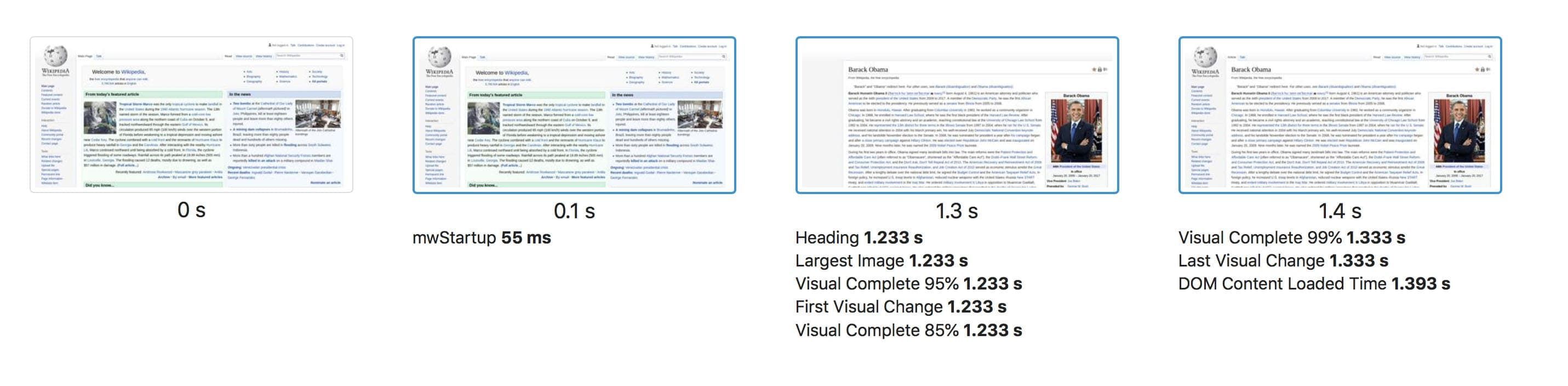
This is perfectly fine in most cases. But if you want to start white (the metrics somehow isn't correct) or if you click a link and that click changes the layout and is caught as First Visual Change, there are workarounds.
If you just want to start white and navigate to the next page you can just clear the HTML between pages:
/**
 * @param {import('browsertime').BrowsertimeContext} context
 * @param {import('browsertime').BrowsertimeCommands} commands
 */
export default async function (context, commands) {
    await commands.measure.start('https://www.sitespeed.io');
    // Remove the HTML and make sure the background is white
    await commands.js.run('document.body.innerHTML = ""; document.body.style.backgroundColor = "white";');
    return commands.measure.start('https://www.sitespeed.io/examples/');
};
If you want to click a link and want to make sure that the HTML doesn't change when you click the link, you can try to hide the HTML and then click the link.
/**
 * @param {import('browsertime').BrowsertimeContext} context
 * @param {import('browsertime').BrowsertimeCommands} commands
 */
export default async function (context, commands) {
    await commands.measure.start('https://www.sitespeed.io');
    // Hide everything
    // We do not hide the body since the body needs to be visible when we do the magic to find the start of the
    // navigation by adding a layer of orange on top of the page
    await commands.js.run('for (let node of document.body.childNodes) { if (node.style) node.style.display = "none";}');
    // Start measuring
    await commands.measure.start();
    // Click on the link and wait on navigation to happen
    await commands.click('body > nav > div > div > div > ul > li:nth-child(2) > a', { waitForNavigation: true });
    return commands.measure.stop();
};
Pass your own options to your script
You can add your own parameters to the options object (by adding a parameter) and then pick them up in the script. The script runs in the context of Browsertime, so you need to pass options in via that context.
For example: if you want to pass a password to your script, you can do that by adding --browsertime.my.password MY_PASSWORD and then in your code get hold of it with:
/**
 * @param {import('browsertime').BrowsertimeContext} context
 * @param {import('browsertime').BrowsertimeCommands} commands
 */
export default async function (context, commands) {
  // We are in browsertime context so you can skip that from your options object
  context.log.info(context.options.my.password);
};
If you use a configuration file you can pass on options like this:
{
    "browsertime": {
        "my": {
            "password": "paAssW0rd"
        }
    }
}
Getting values from your page
In some scenarios you want to do different things depending on what's on your page. For example: you are testing a shop checkout and you need to verify that the item is in stock. You can run JavaScript and get the value back into your script.
Here's a simple example — in real life you will need to get something from the page:
/**
 * @param {import('browsertime').BrowsertimeContext} context
 * @param {import('browsertime').BrowsertimeCommands} commands
 */
export default async function (context, commands) {
  // We are in browsertime context so you can skip that from your options object
  const secretValue = await commands.js.run('return 12');
  // if secretValue === 12 ...
}
If you want to have different flows depending on whether an element exists, you can do something like this:
...
if (await commands.exists('id:nonExistingID')) {
    // The element with that id exists
} else {
    // There's no element with that id
}
Test one page that needs a much longer page complete check than others
If you have one page that needs special handling — for example, it makes a couple of late, really slow AJAX requests — you can catch that with your own wait for the page to finish.
/**
 * @param {import('browsertime').BrowsertimeContext} context
 * @param {import('browsertime').BrowsertimeCommands} commands
 */
export default async function (context, commands) {
  // First test a couple pages with default page complete check
  await commands.measure.start('https://<page1>');
  await commands.measure.start('https://<page2>');
  await commands.measure.start('https://<page3>');

  // Then we have a page that we know needs to wait longer — start measuring
  await commands.measure.start('MySpecialPage');
  // Go to the page
  await commands.navigate('https://<myspecialpage>');
  // Then you need to wait on a specific element or event. In this case
  // we wait for an id to appear, but you could also run your own JS
  await commands.wait('id:my-id', { timeout: 20000 });
  // And then when you know that page has loaded stop the measurement
  // = stop the video, collect metrics etc
  return commands.measure.stop();
};
Test the same page multiple times within the same run
If for some reason you want to test the same URL multiple times within the same run, it will not work out of the box, since the current version creates the result files using the URL. For example, testing https://www.sitespeed.io/ twice will break, because the second access will try to overwrite the first one.
But there is a hack you can do. If you add a dummy query parameter (and give the page an alias) you can test them twice.
/**
 * @param {import('browsertime').BrowsertimeContext} context
 * @param {import('browsertime').BrowsertimeCommands} commands
 */
export default async function (context, commands) {
    await commands.measure.start('https://www.sitespeed.io/', 'HomePage');

    // Do something smart that means you need to test the same URL again
    // ...

    return commands.navigate('https://www.sitespeed.io/?dummy', 'BackToHomepage');
};
Using setUp and tearDown in the same script
This is a feature used by Mozilla and was created years ago. Nowadays you can probably just do everything in one script.
Scripts can also directly define the --preScript and --postScript options by implementing a setUp and/or tearDown function. These functions get the same arguments as the test itself. When using this form, the three functions are declared in module.exports under the setUp, tearDown and test keys. This works for CommonJS files.
Here's a minimal example:
async function setUp(context, commands) {
  // do some useful set up
};

async function perfTest(context, commands) {
  // add your own code here
};

async function tearDown(context, commands) {
  // do some cleanup here
};

module.exports = {
  setUp: setUp,
  tearDown: tearDown,
  test: perfTest
};